Seven best Gmail analytics tools to manage email workloads

Gmail analytics tools give you a clearer picture of reply times, email activity, and team workloads. The timetoreply tool helps you spot slow replies, while EmailAnalytics shows when your team gets busiest. Hiver is another option if you need help sharing inboxes and managing customer emails.
The right tool depends on what you need to measure. Some focus on team performance, while others track email opens or help manage customer conversations.
In this guide, I’ll compare seven Gmail analytics tools, covering their key features, prices, and limitations. I’ll also explain who each tool suits best, so you can find an option that fits your team’s needs and budget.
What should you look for in Gmail analytics tools?
The right Gmail analytics tools help you see how quickly your team replies, where emails pile up, and who has too much on their plate. Some tools focus on response times, while others track email activity or help teams manage shared inboxes. Think about what you need to improve before paying for features you may never use.
It’s easy to see why this matters. Microsoft’s 2025 Work Trend Index found that workers receive an average of 117 emails a day. That’s a lot to keep up with when you have other work to do, too.
A clearer view of your inbox can help you reduce workflow friction and spend less time chasing messages.
A few key features can help you get more value from Gmail analytics tools.
- Reply-time reports: These show how quickly team members respond to incoming emails.
- Workload tracking: Look for reports that show how email activity is spread across your team.
- Email activity trends: Look for reports that show how email volumes change throughout the day or week.
- Detailed reporting: Check whether you can view email activity for a single team member or compare several people.
- Privacy and security: Find out how the tool protects your data and what permissions it needs.
| How can you tell if a Gmail analytics tool is right for you?Check whether it offers the reports you need, from reply times to email activity across your team. Make sure its reporting options suit your work and its privacy terms are clear. |
The 7 best Gmail analytics tools for busy teams
These seven Gmail analytics tools cover different needs, including team performance, email tracking, and shared inbox management. For reply-time and workload reports, I recommend timetoreply. EmailAnalytics and Streak are also worth considering for team activity and sales follow-ups.
The right choice can help you save hours each week and keep email work easier to manage. The table below compares each tool’s key features, starting price, and free trial or plan.
| Tool | Best for | Key analytics capabilities | Starting price | Free option |
|---|---|---|---|---|
| timetoreply | Team reply-time & SLA analytics | Reply times, email volume, SLA performance, and mailbox comparison | $44/mailbox/mo | 14-day trial |
| EmailAnalytics | Team response-time dashboards | Response times, email volume, busiest hours, and sender activity | $19/inbox/mo | 14-day trial |
| Email Meter | Automated email reports | Response times, email volume and team activity trends | $19/user/mo | Free plan + trial |
| Hiver | Shared inbox and support analytics | Response times, SLA performance, email ownership and team workload | $35/user/mo | 7-day trial |
| Gmelius | Shared inbox automation and analytics | Team email workflows, assignments, automation and reporting | $21/user/mo | 7-day trial |
| Mailtrack | Individual open & click tracking | Email opens, link clicks and tracking notifications | $2.99/user/mo | Free plan |
| Streak | CRM and email tracking | Email opens, link clicks, sales pipelines and follow-ups | $59/user/mo | Free plan + 14-day trial |
*All prices verified from vendor websites, as of October 2026.
1. timetoreply: Best for team reply-time and SLA analytics

Image via timetoreply
When your team handles lots of customer emails, it’s helpful to know how quickly everyone replies. With timetoreply, you can track first reply times and see how long it takes to resolve conversations in Gmail and Google Workspace. You can also set reply-time goals and get alerts when replies fall behind.
The dashboard brings reply times, email volumes, and SLA results into one place. You can compare individual and shared mailboxes to see where work is building up. It’s available through the Google Workspace Marketplace.
Pricing: Paid plans start at $44 per mailbox per month and require at least 15 mailboxes. A free trial is available, and smaller teams can use timetoreply Lite. The main plan is better suited to larger teams.
2. EmailAnalytics: Best for simple team response-time dashboards

Image via EmailAnalytics
If you manage a team, you may want to know who’s handling the most email and how quickly people reply. EmailAnalytics shows this through charts on average response times, email volume, busiest hours, and top senders. It connects to Gmail through the Google API, so you don’t need to install an extension.
You’ll also get daily and weekly reports by email, without having to log in to check the data.
Pricing: Paid plans start at $19 per inbox per month. You can try the tool free for 14 days, but there’s no permanent free plan or built-in shared inbox.
3. Email Meter: Best for automated, privacy-friendly reports

Image via Email Meter
Email Meter gives you a way to check email activity across your team. It tracks reply times, email volumes, and busy hours in Gmail and Outlook. It doesn’t read the messages, which may help you protect your inbox.
You can choose weekly or monthly summaries and receive them automatically.
Pricing: The Basic plan is free and covers simple reports. Paid plans start at $19 per user per month.
4. Hiver: Best for support teams that use shared inboxes

Image via Hiver
Hiver turns your Gmail inbox into a shared workspace where your team can handle emails together. You can assign messages to team members, turn emails into tasks, and see who is responsible for each conversation. This works well for shared addresses like support@ and hello@.
You also get reports on reply times and SLAs, so you can check how well your team handles incoming requests. Everything stays inside Gmail, without the need to switch between tools.
Pricing: Plans start at $35 per user per month, with a 7-day free trial.
5. Gmelius: best for shared inboxes plus automation

Image via Gmelius
Gmelius adds shared inboxes, Kanban boards, and automation to Gmail and Google Workspace. Your team can manage shared emails, assign work, and track tasks without jumping between different tools. Reporting is also available on its higher plans.
You can set rules to route, tag, and assign emails automatically. This saves your team from sorting every message by hand.
Pricing: Plans start at $21 per user per month, with a 7-day free trial. It’s one of the Gmail analytics tools with no free plan.
6. Mailtrack: Best for individual open and click tracking
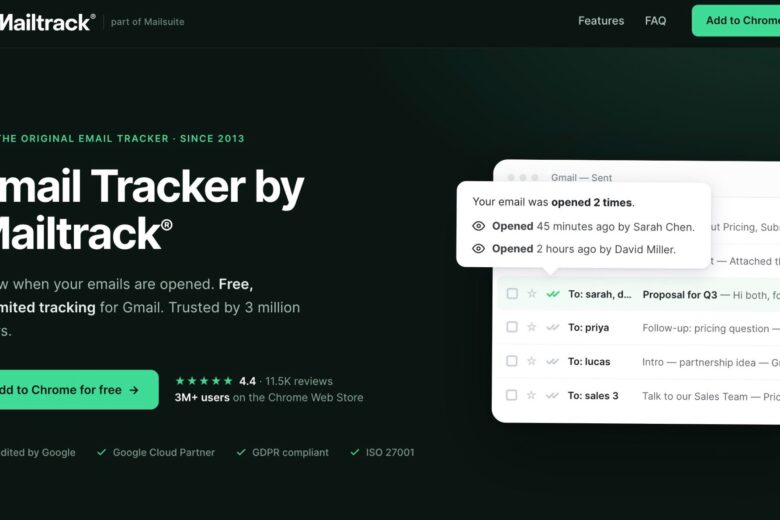
Image via Mailtrack
If you send a lot of sales or outreach emails, Mailtrack can help you follow up at the right time. It shows when recipients open your messages and click links. The Gmail add-on comes from Mailsuite and focuses on tracking emails you send.
You can track unlimited emails and get open alerts with the free plan. This is handy when you want to check individual messages rather than team activity.
Pricing: Paid plans start at $2.99 per user per month, and a free plan is available.
7. Streak: Best for running a CRM inside Gmail

Image via Streak
Streak works inside Gmail and gives you tools to manage sales deals. These include pipelines, shared contacts, and mail merge. Small teams can use it to handle client relationships and follow-ups from their inbox.
It also tracks opens and clicks, so you can see whether contacts engage with your emails.
Pricing: Streak offers a free plan with basic tracking and a 14-day trial of its higher tiers. Paid plans start at $59 per user per month, which puts it at the higher end of the Gmail analytics tools on this list.
| Which of these Gmail analytics tools is right for you?The right tool depends on what you want to change about your email routine. You may need timetoreply to keep replies on track, Email Meter for regular reports, and Gmelius for automation. For individual email follow-ups, Streak and Mailtrack are good options. |
FAQ
1. What are Gmail analytics tools?
Gmail analytics tools collect data from your Gmail or Google Workspace accounts. They turn it into reports on reply times, email volumes, team performance, and inbox activity. Some focus on individual email tracking rather than team reports.
2. Does Gmail have built-in analytics?
No, not for tracking how your team handles email. Gmail doesn’t report on individual response times, email volumes, or workloads. Gmail analytics tools add these reports and help you spot where your team may need support.
3. What is the best Gmail analytics tool for teams?
For a closer look at team performance, I’d choose timetoreply. Among other Gmail analytics tools, EmailAnalytics is a good fit for simple dashboards, and Email Meter works well for scheduled reports.
4. How do I track email response time in Gmail?
You’ll need a dedicated tool to measure this. Gmail analytics tools like timetoreply and EmailAnalytics track how long your team takes to reply and turn that data into reports.
5. Are Gmail analytics tools safe to use?
Most established providers use Google’s permission system to connect to your account. Still, check what data each tool can access and how it stores that information. Email Meter, for example, reads email headers rather than message content.
6. Do these tools work with Google Workspace?
Yes. All seven Gmail analytics tools covered here support Google Workspace accounts. Email Meter and Hiver also work with Outlook, which can help if your team uses both platforms.
7. Is there a free email analytics tool?
You can start with Email Meter, Mailtrack, or Streak without paying. Their free plans cover basic reporting or email tracking, rather than the full range of features. Most other Gmail analytics tools offer a free trial instead.
8. How can analytics improve team email productivity?
Email analytics gives you the numbers to make better decisions about your team’s inbox. You can find out whether someone has too many emails, whether customers wait too long, or whether certain days need more cover. You can then change how your team handles incoming messages.
Final Thoughts
Before choosing from these Gmail analytics tools, consider what takes up most of your team’s time. Is it slow customer replies, a busy shared inbox, or keeping track of sales emails? Your answer will narrow down the options much faster than comparing every feature.
Look at the reports each tool provides, along with its mailbox limits and pricing. Use a free plan or trial to test it with your team’s actual email activity. That should give you a better basis for choosing.
About the Author
Gaurav Sharma is the founder and CEO of Attrock, a marketing agency, and the founder of Colytics AI, an AI visibility and answer engine optimization (AEO) platform. Over 12 years in search, I built a million-dollar agency and earned the results to back it — hundreds of thousands of monthly visitors, thousands of keywords on page one, and hundreds of AI citations. The shift from search to AI has thrown a lot of teams. I made that shift myself and learned what works in SEO and what works in AI. So I built Colytics to fix the gap and wrote the AEO playbook that helps any brand earn citations the way I’ve delivered for my clients.